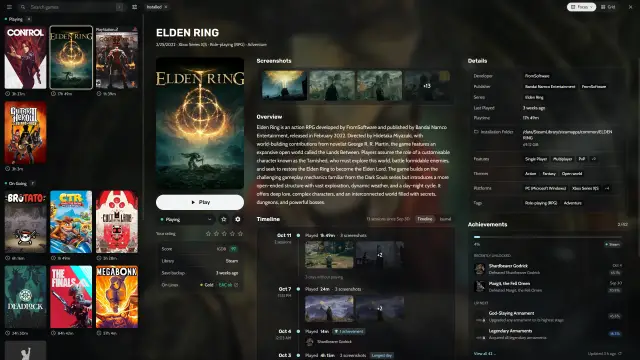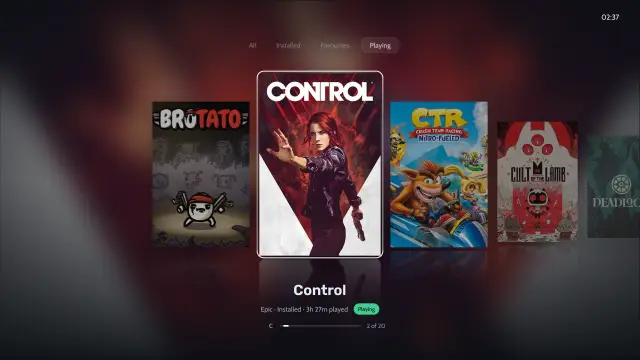

Heronite runs on Steam Deck because SteamOS is Linux. It is not Steam Deck Verified, so you set it up by hand.
What you need
- A Steam Deck with its default SteamOS.
- A keyboard and mouse for the setup, or the Deck’s touch screen and its on-screen keyboard (Steam X).
- Accounts for the stores you want to use.
Install Heronite in Desktop Mode
- Press the Steam button, open Power, and choose Switch to Desktop.
- In the desktop’s browser, open the download page and get
Heronite-x86_64.AppImage. It runs on SteamOS with no packages to install. - Move it to a folder you can write to, such as
~/Applications. - Make it executable: in the file manager, right-click the file, choose Properties, open Permissions and tick Is executable.
- Start the AppImage.
Or do steps 3 to 5 in a terminal:
mkdir -p ~/Applications
mv ~/Downloads/Heronite-x86_64.AppImage ~/Applications/
chmod +x ~/Applications/Heronite-x86_64.AppImage
~/Applications/Heronite-x86_64.AppImage
On the first start, Heronite adds the Steam games it finds, with no login, and looks for emulators and ROM folders.
Log in to Epic, GOG and Amazon Games
- Press Ctrl 4 to open Stores.
- Choose Epic Games, GOG or Amazon Games.
- Press Log in.
- Log in on the store’s page in the window that opens. Use a keyboard to type your password.
The store’s games then appear in your library. Install a game or two now, while you have the desktop. You can choose the install folder, so the SD card works too.
Each store has a guide: Epic Games, GOG and Amazon Games.
Add Heronite to Steam
- Open Steam in Desktop Mode.
- Choose Add a Game at the bottom left of the library, then Add a Non-Steam Game.
- Press Browse, set the file filter to all files, and select
Heronite-x86_64.AppImage. - Add it, then find Heronite in your library, right-click it and open Properties.
- In Launch Options, type:
--console--console opens Heronite in console mode, the controller-first layout. Add --fullscreen for a fullscreen window. Steam’s menu names can change between updates. See Command line and links for all the options.
Start Heronite in Gaming Mode
- Double-click the Return to Gaming Mode icon on the desktop.
- Start Heronite from your Steam library, under non-Steam games.
Heronite opens on the console home screen, with a Continue playing shelf of your recent games. The Library tab holds every game.
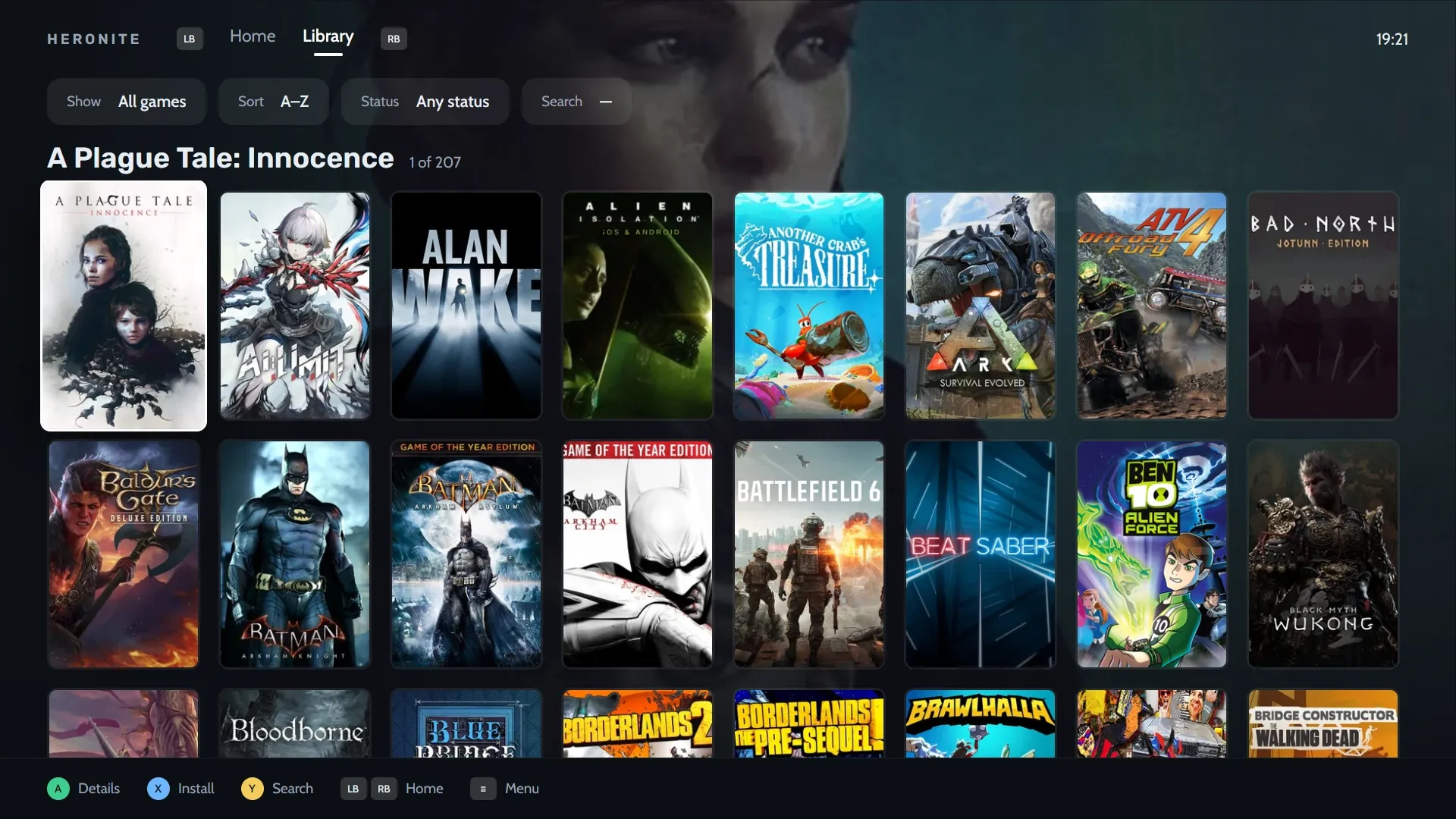
The console library: every store in one grid, with controller hints.
The controls are the Deck’s own buttons:
| Button | Action |
|---|---|
| A | Confirm |
| B | Back |
| X, Y | The actions shown on screen |
| L1 / R1 | Switch tabs |
| D-pad, left stick | Move |
| Menu button | Open the menu |
Button pictures follow the controller, and Heronite knows the Steam Deck’s. The full list is in Console mode.
Install and play a game
- Open the Library tab with R1.
- Choose a game and press X to install it.
- Press A on an installed game to open its page, then choose Play.
To keep one game as its own entry in Steam, use Add to Steam in the game’s actions. To open console mode without the launch option, turn on the startup or controller options in Settings → Console mode. The in-game overlay (beta) needs a Wayland session with layer-shell support, so read Console mode before you rely on it.
Which games run well on Steam Deck?
Not every Windows game runs well through Proton. Check the ProtonDB rating and anti-cheat status in the game’s details before you install. A game may need another Proton build: see the GE-Proton guide.
Some games need a lower FPS limit for the Deck’s battery and screen. Set it per game in Game settings.
Heronite won’t start or respond on Steam Deck
- Heronite does not start. Make sure the file is executable. Run it from a terminal to see any message.
- The AppImage does not update. It replaces itself, so its folder must be writable. Move it to
~/Applicationsor another folder in your home. - The buttons do not react. Check the controller layout Steam uses for the Heronite entry.
For login and game problems, see Troubleshooting.