
What you need
- A 64-bit Linux PC with a working Vulkan driver.
- An Amazon account. For free games, a Prime membership that includes Prime Gaming.
- Free disk space. Games install to
~/Games/Heroniteby default.
Install Heronite
Download the AppImage from the download page:
chmod +x Heronite-x86_64.AppImage
./Heronite-x86_64.AppImage
Other formats are in the installation guide. On Steam Deck, follow the Steam Deck guide.
Log in to Amazon Games
- Open Stores (Ctrl 4).
- Choose Amazon Games.
- Press Log in.
- Log in on Amazon’s page in the window that opens.
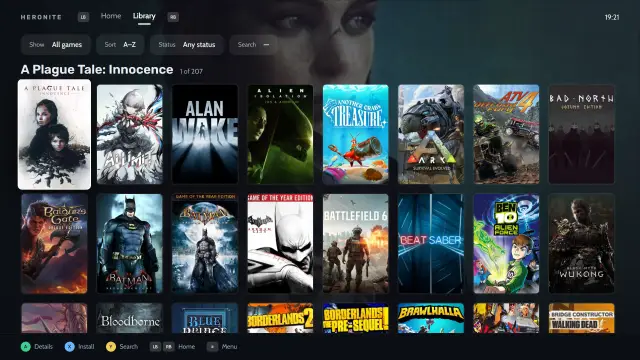
Your Amazon games then appear in your library, claimed Prime Gaming games included. If the login window does not open, use Or log in with your browser on the same page and paste the code it gives you. For Amazon, the code is the address of the amazon.com page you land on (store logins).
Claim your Prime Gaming games
Heronite does not claim games, so claim them on Amazon’s site:
- Open Amazon’s Prime Gaming page in your browser and log in.
- Claim the games you want.
- In Heronite, choose Stores → Amazon Games → Refresh library.
The new games then appear in your library. Amazon decides what Prime Gaming offers and rotates it, so claim a game while it is available. If a claimed game is missing, check that you used the same Amazon account, then refresh again.
Install and play an Amazon game
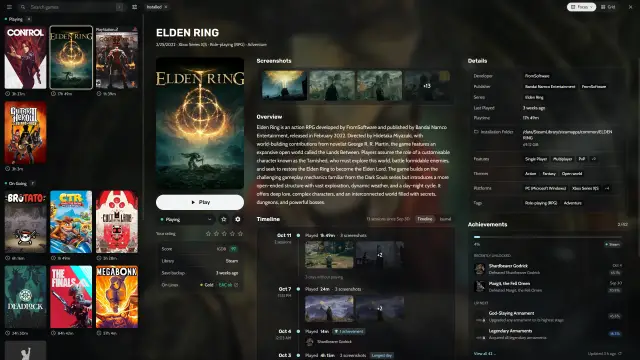
Look at the On Linux row in the game’s details first. It shows the ProtonDB rating and the anti-cheat status. Gold or Platinum usually runs with no changes.
- Select the game and press Enter, or choose Install with Amazon Games.
- Check the folder under Select install path. The Wine version is under Show Wine settings; the default is fine to start.
- Press Install. Follow the download on the Downloads page (Ctrl 2).
- When it finishes, select the game and press Enter to play.
Change the Proton version
If a game does not start, open Game settings → Compatibility and choose another build in Version. GE-Proton and Proton-CachyOS often have fixes first, and the GE-Proton guide shows how to install them. The game’s page on ProtonDB often has the fix too.
Update, repair or move an Amazon game
- Update: Heronite checks for game updates every 3 hours. Update all on the Amazon Games page installs them in one go.
- Repair or move: choose Verify and repair or Move install in the game’s actions.
One download queue runs these jobs and uninstalls, and pauses when you are offline. Installed games stay on disk if you log out of Amazon. Heronite keeps your login in its data folder, so keep that folder private (Files and folders).
Which Amazon games can’t run on Linux?
Single-player games rarely have anti-cheat problems. Games whose anti-cheat blocks Linux will not run. The anti-cheat status in the On Linux row comes from Are We Anti-Cheat Yet?, and the docs explain anti-cheat in more detail.
An Amazon game won’t start on Linux
Read its launch log in Settings → Logs. The troubleshooting page lists the common Wine fixes.