
GE-Proton and Proton-CachyOS often get fixes for new releases first, so try them when a game crashes.
What you need
- Heronite on Linux (installation guide). On Steam Deck, set Heronite up with the Steam Deck guide first.
- An internet connection. Builds download from GitHub.
- Disk space. A Proton build takes from a few hundred megabytes to over a gigabyte.
Install GE-Proton in the Wine Manager
- Press Ctrl 3 to open the Wine Manager, or open it from the command palette (Ctrl K).
- Choose GE-Proton in the list on the left. Its builds appear on the right, newest first, with release date and size.
- Find the build you want, or type a version in the search box. GE-Proton-latest follows the newest release. A numbered build stays fixed, which helps when a game works on one release only.
- Press Install. The row changes to Installed.
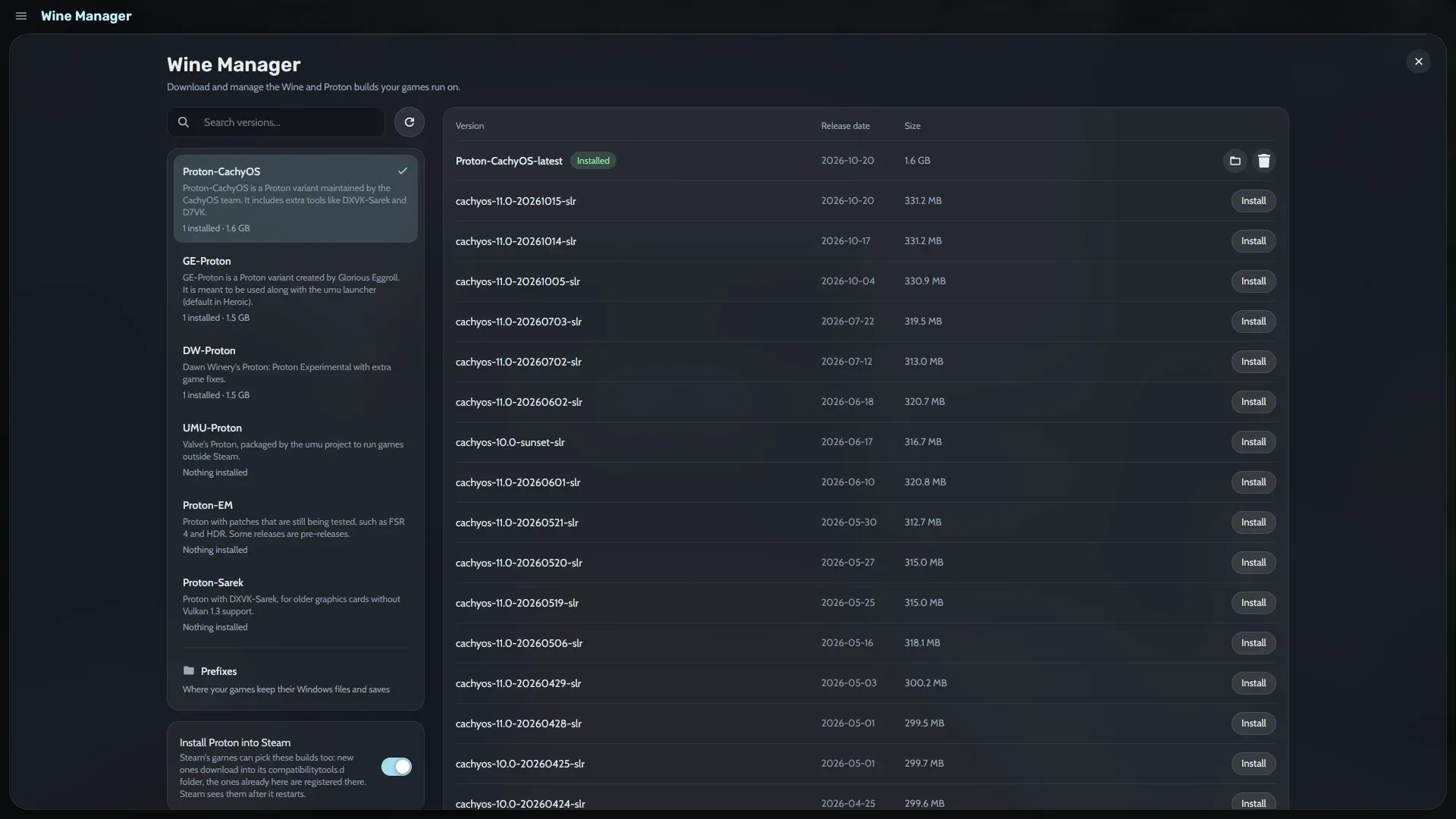
Builds go to ~/.local/share/heronite/tools/proton. To keep the -latest entries current, turn on Keep the -latest builds up to date. Heronite then updates them in the background, never while a game runs.
Install Proton-CachyOS
- In the Wine Manager, choose Proton-CachyOS in the list on the left.
- Press Install on a build.
Builds install side by side, so you can keep GE-Proton and Proton-CachyOS and switch per game.
What are the other Proton builds for?
| Source | What it is |
|---|---|
| Proton-CachyOS | A Proton variant by the CachyOS team, with extra tools like DXVK-Sarek and D7VK |
| GE-Proton | A Proton variant by Glorious Eggroll, meant to be used with the umu launcher |
| DW-Proton | Dawn Winery’s Proton: Proton Experimental with extra game fixes |
| UMU-Proton | Valve’s Proton, packaged by the umu project to run games outside Steam |
| Proton-EM | Proton with patches that are still being tested, such as FSR 4 and HDR. Some releases are pre-releases |
| Proton-Sarek | Proton with DXVK-Sarek, for older graphics cards without Vulkan 1.3 support |
ProtonDB often names the build that works for a game.
Pick a build in Game settings
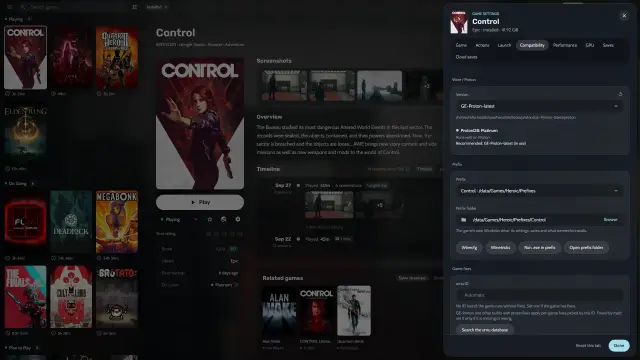
- Select the game in your library and open its Game settings.
- Open the Compatibility tab.
- In Version, choose the build you installed.
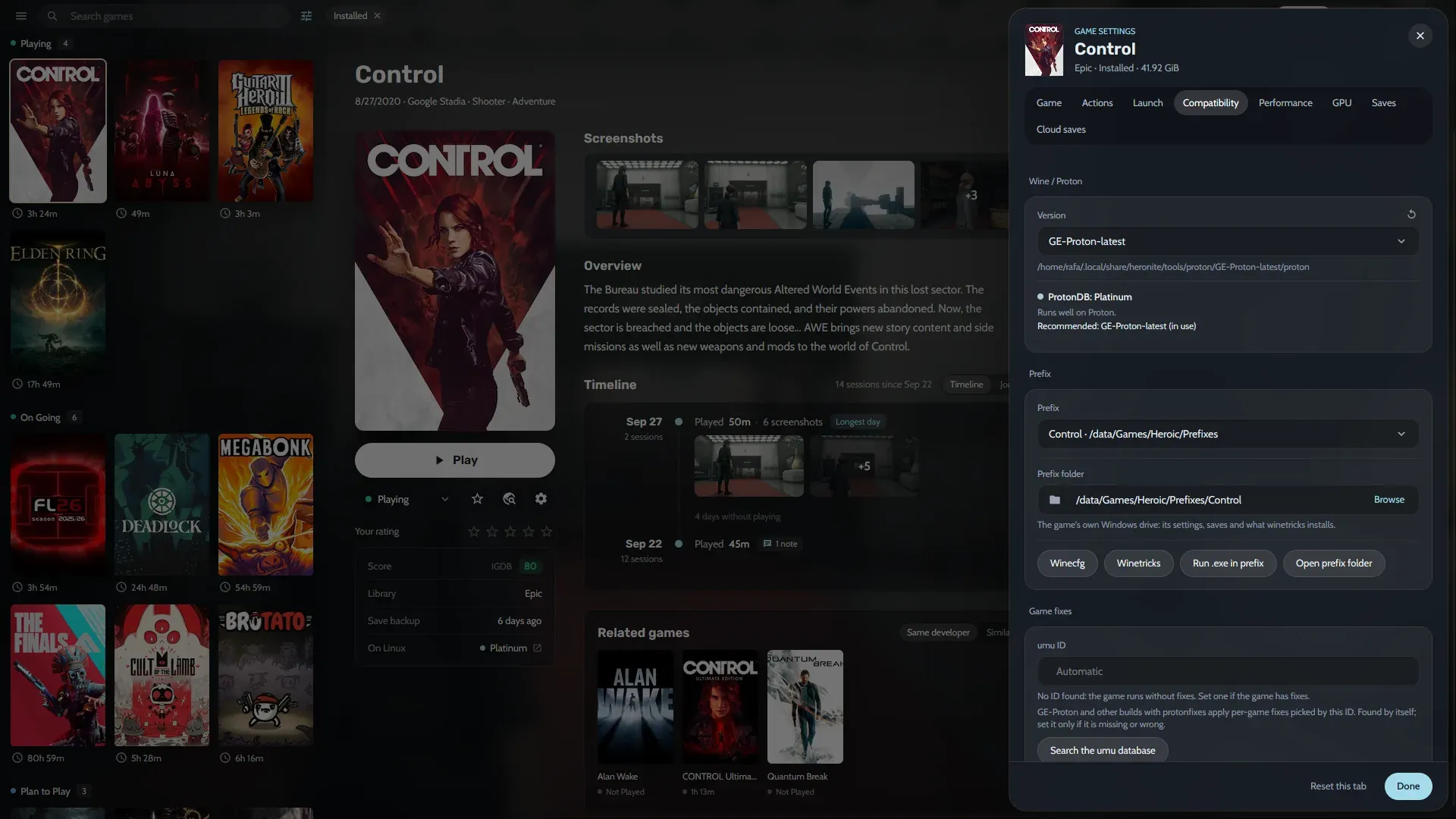
The same tab shows the game’s ProtonDB rating and a Recommended build. Your choice applies to that game only. To set the build for new games, choose a build in Version in Settings → Game defaults → Compatibility. More in Wine and Proton.
Share the builds with Steam (optional)
Heronite can put builds in Steam’s compatibilitytools.d folder, where Steam can use them:
- In the Wine Manager, turn on Install Proton into Steam.
- Install builds as above. New ones download into
compatibilitytools.d, and Heronite registers the ones you already have there. - Restart Steam so it sees them.
- In Steam, right-click a game and choose Properties, then Compatibility.
- Turn on the option to force a compatibility tool and pick your build.
Update and remove builds
In the Wine Manager, press Update next to an installed build when a new release exists. Press Remove to delete a build. Games set to a removed build fall back to the default.
A build won’t install, show up or fix the game
- The list is empty. Press the refresh icon. If it says GitHub’s limit was reached, try again after the time it shows.
- A download fails. Check your connection and press Install again.
- Steam does not show the build. Make sure Install Proton into Steam was on when you installed it, then restart Steam.
- A game still crashes. Try another source, such as Proton-CachyOS or DW-Proton, or a fresh prefix.
For Vulkan errors and other common fixes, see Troubleshooting. If a game has anti-cheat that blocks Linux, no Proton build can help: see Anti-cheat.