
What you need
- A 64-bit Linux PC with a working Vulkan driver, and the 32-bit Vulkan driver for older games.
- A Battle.net account.
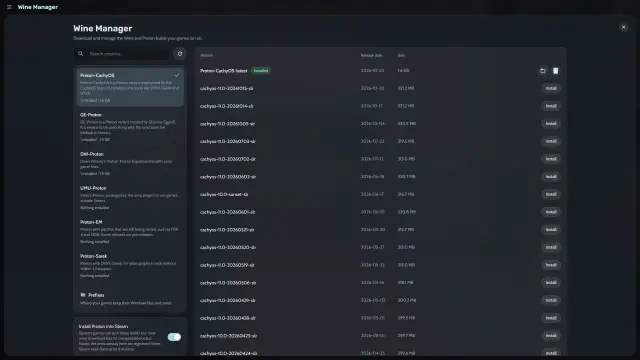
- An internet connection. Heronite downloads a Proton build if you have none, then the Battle.net installer.
- Free disk space for Wine and your games.
Install Heronite
Get the AppImage from the download page. It runs on any distribution:
chmod +x Heronite-x86_64.AppImage
./Heronite-x86_64.AppImage
Other formats are in the installation guide. On Steam Deck, follow the Steam Deck guide.
Set up Battle.net
- Press Ctrl 4 to open Stores.
- In the list on the left, under Store apps, choose Battle.net.
- Press Set up Battle.net.
- Wait until the page says Ready. This can take a few minutes.
Heronite finds or downloads a Proton, then the official installer. It creates the Wine prefix (a separate Windows folder for that app) ~/Games/Heronite/Prefixes/Battle.net and installs Battle.net there. If you already have Battle.net in a Wine prefix, press Use an existing install instead of step 3 and select that prefix.
Log in, install and play Blizzard games
- Press Open Battle.net.
- Log in in the Battle.net window. Heronite never sees your password, and its page then shows Signed in.
- Install a game in Battle.net, as you would on Windows.
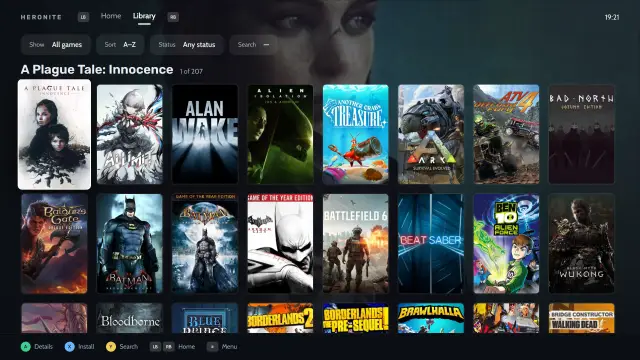
- Press Enter on the game in your Heronite library to start it. Heronite records the play time.
Before you install a big game, look at its On Linux row in the game’s details. It shows the ProtonDB rating and the anti-cheat status from Are We Anti-Cheat Yet?.
If an installed game is missing from your library, press Refresh under Installed games on the Battle.net page. A game you have not installed shows Install with Battle.net, which opens the store app.
Change the Proton version for Battle.net
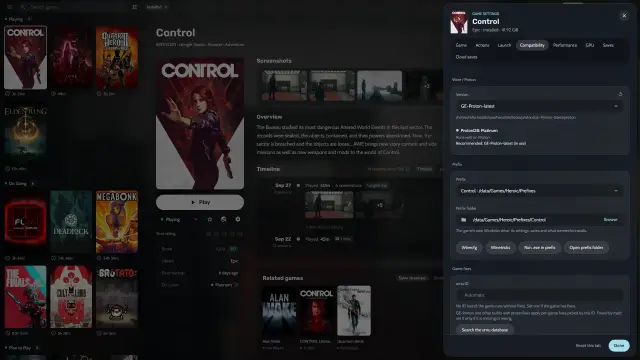
Open Wine settings on the Battle.net page and choose another build in Version on the Compatibility tab. Until you change it, Heronite uses your default Proton. GE-Proton and Proton-CachyOS are the usual ones to try.
To open the prefix, press Open folder next to Wine prefix on the same page. To stop the store app and everything in its prefix, close any running game first, then press Close Battle.net.
Remove Battle.net from Heronite
Press Remove from Heronite on the Battle.net page. The Wine prefix and the games installed in it stay on disk. Delete the prefix folder yourself to get the space back (Files and folders).
Does anti-cheat block any Blizzard games?
Yes, Call of Duty. The Battle.net page warns that its Ricochet anti-cheat does not run on Linux. Other Blizzard games can change from one patch to the next, so check ProtonDB before you install.
Battle.net won’t set up or crashes
- Set up stops or fails. Check your internet connection and try again. Logs are in Settings → Logs.
- Battle.net or a game crashes. Try another build in Wine settings, or a fresh prefix.
For missing DLLs, Vulkan errors and other Wine fixes, see Troubleshooting.