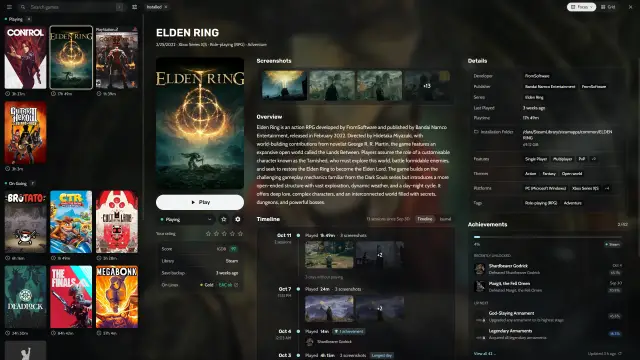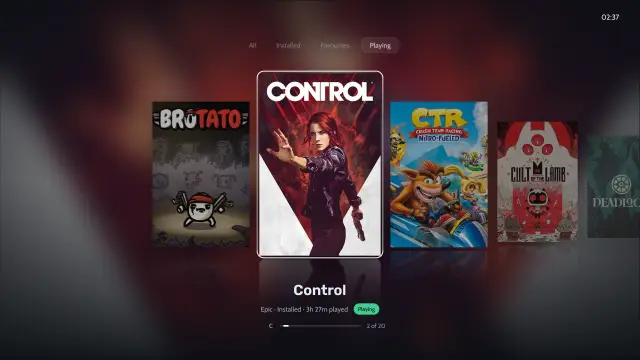

Play time shows under each cover, in a game’s details, on its timeline and on its console mode page.
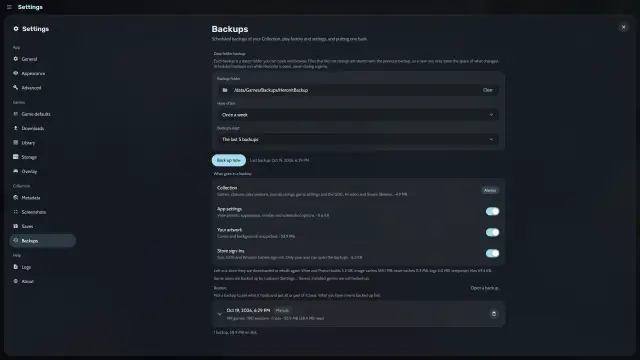
Heronite saves everything on your PC as plain JSON files, with no telemetry. To back it up, see saves and backups.
Where do I see my gaming statistics?
Open Statistics with Ctrl 6. Choose Week, Month, Year or All time at the top, and use the arrows to change period. The Overview tab shows:
- Total time played, compared with the period before
- Days played, your play streak and the number of sessions
- Your busiest day and your top games
- A day-by-day chart where each colour is a different game
The other tabs:
- Journeys shows your games over time and which ones you played at the same time.
- Backlog follows your goal and the games you beat.
- Discoveries points out things like going back to an old game after months away.
- Album collects the screenshots you took.
How do I set a yearly backlog goal?
- Open Statistics (Ctrl 6) and its Backlog tab.
- Set a goal for the year with the minus and plus buttons.
A progress ring shows how many games you have beaten, whether you are on track and what pace you need. Heronite compares your hours with How Long To Beat.
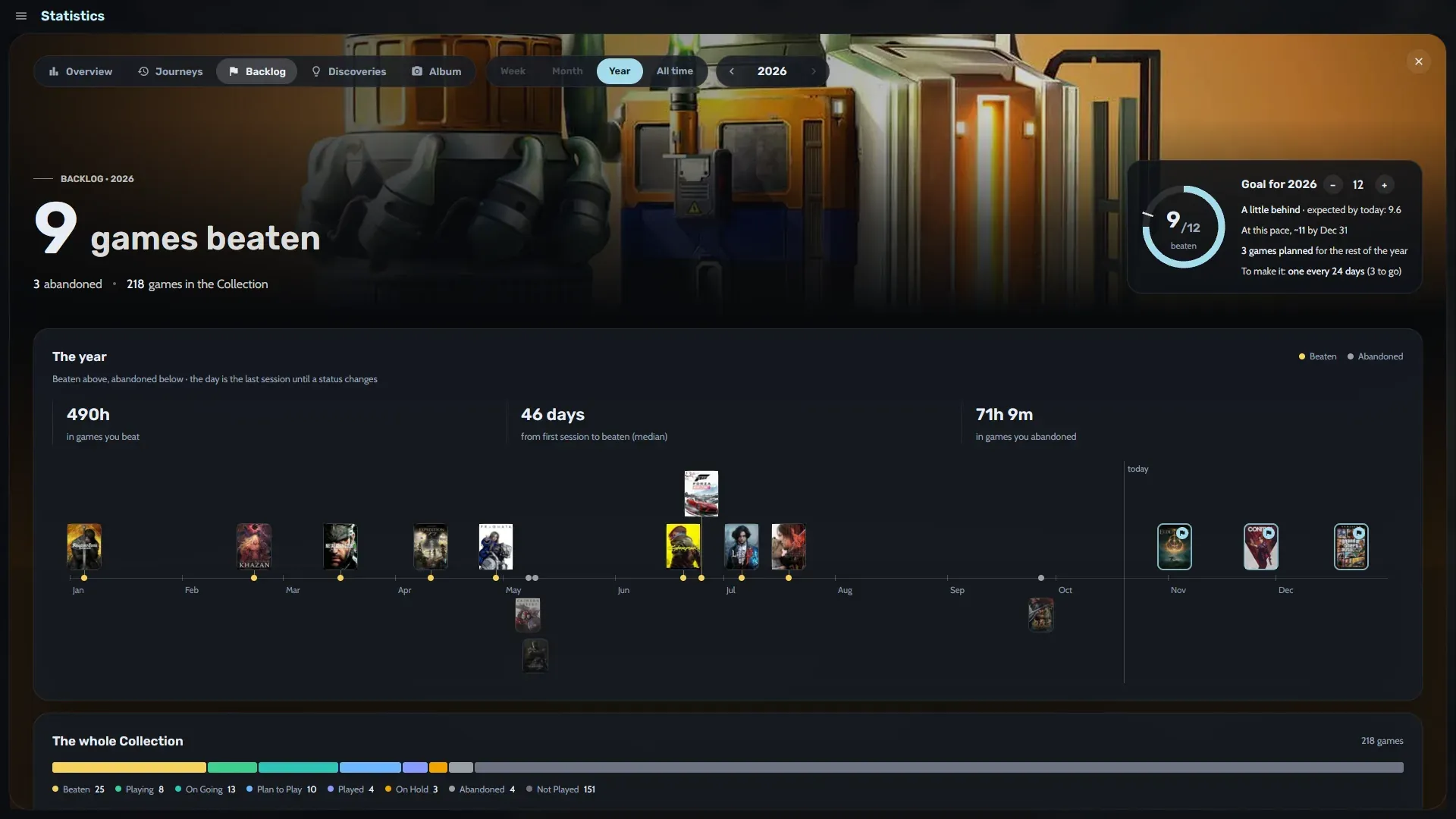
The Backlog tab with its goal ring and timeline of beaten games.
Beneath the ring:
- A timeline of the year, with beaten games above the line and abandoned ones below
- The hours you put into games you beat and into games you abandoned
- How many days you take from first session to beaten (the median)
- Your Plan to play queue and how long it would take at your usual pace
How do I open my gaming year in review?
Open the banner on the Statistics page, or press Ctrl K and type “Year in review”. Heronite shows your year as seven full-screen stories, at year end or any time before.
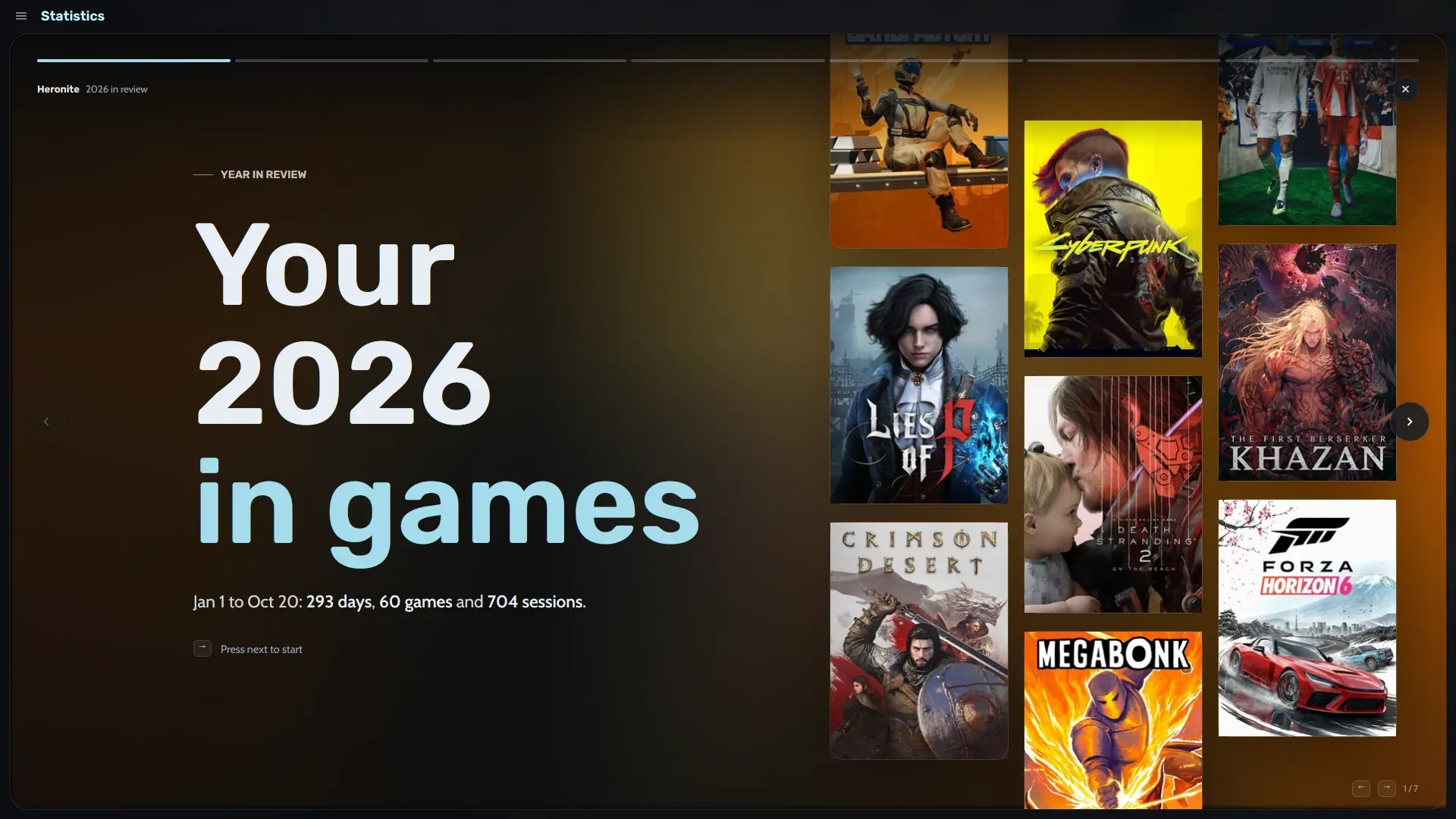
The first story, over a wall of covers.
The stories cover your busiest month, longest streak, longest break and game of the year. The last ones show when you usually play, then a wrap-up. Copy summary copies a short text of your year to post anywhere.
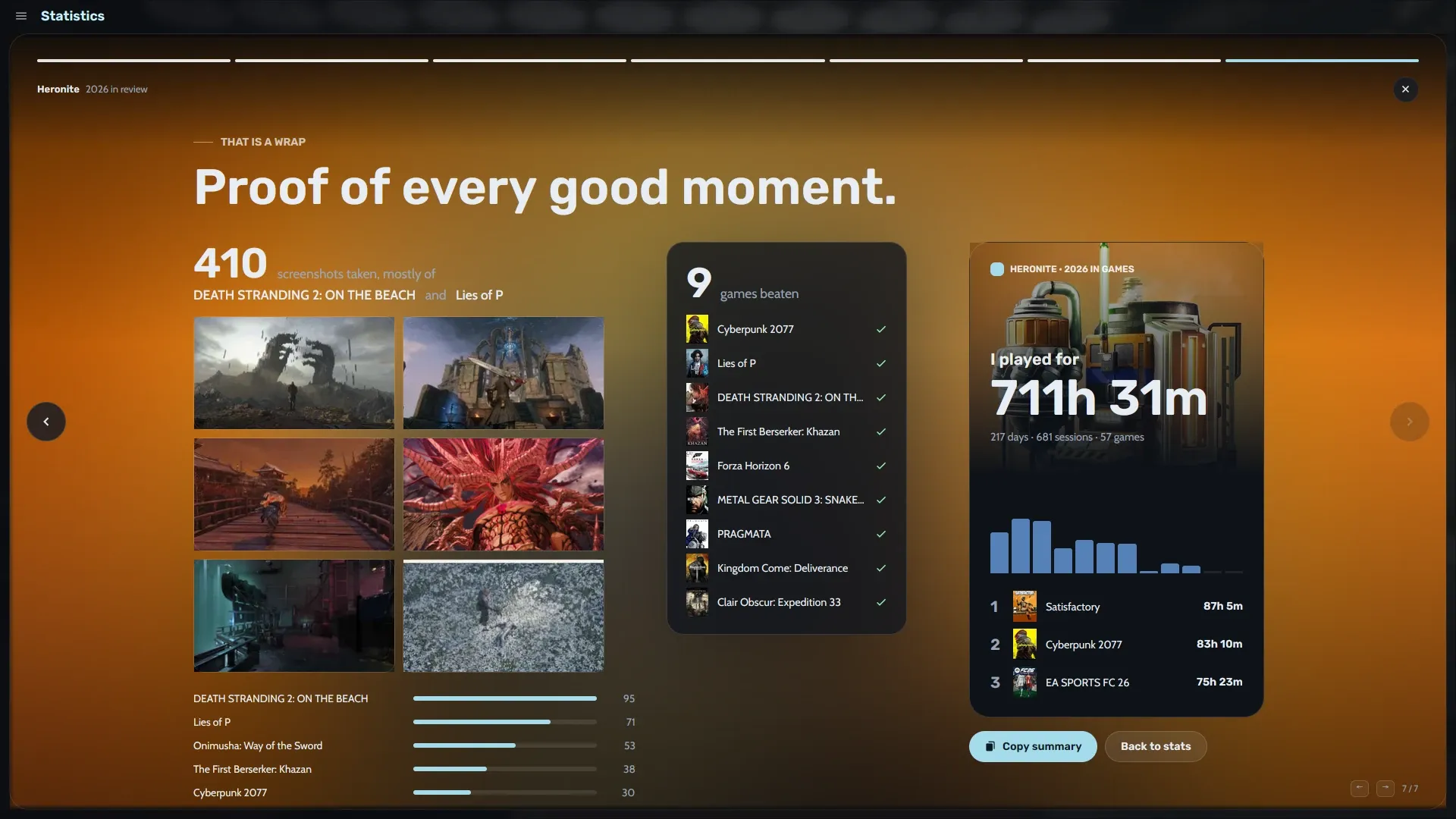
The last story ends with a card for your year, ready to share.
How do I add notes and screenshots to my play history?
Each game has a journal for notes, such as where you left off. It sits on the same timeline as your sessions.
For screenshots, press F10 while playing. Heronite matches the screenshot to the game, and you can change the key in Settings → Screenshots. The Album tab and each game’s page show what you captured.
Next: download Heronite.