
Heronite vs Playnite: feature comparison
| Heronite | Playnite | |
|---|---|---|
| Platforms | Linux and Windows 10/11 | Windows 10/11 |
| License | GPL-3.0 | MIT |
| Built with | Rust, GPU-rendered, no bundled browser | C# and WPF |
| Steam library | Yes, no login needed | Yes |
| Epic and GOG | Yes | Yes |
| Battle.net, EA app, Ubisoft Connect | Yes, through Wine on Linux | Yes |
| Emulation | Yes | Yes |
| Play time tracking | Statistics and a journal | Yes |
| Console mode | Yes, with themes | Yes, fullscreen mode |
| Plugins and scripts | No | Yes |
| Themes | Console mode themes | Yes |
| Runs Windows games on Linux | Yes, through Wine or Proton | Not applicable |
| Import from the other launcher | Yes, on Windows | Not applicable |
The Playnite column comes from playnite.link and the Playnite repository, current as of November 2026.
Is Playnite coming to Linux?
Not yet. Playnite’s README lists Windows 10 or 11, and it is built on WPF, a Windows framework. Its developer is rewriting it from scratch for version 11.
In a GitHub discussion in November 2025, he wrote that he planned to move to Linux in 2026, after Playnite 11, and try to build a Linux version. We found no released Linux version as of November 2026.
What do Heronite and Playnite share?
Both are free and open source. Both pull games from several stores into one library, record play time, support emulators and have a controller-friendly full-screen mode.
Which one should you choose?
Choose Playnite if…
- You rely on plugins, scripts or a community theme. Playnite supports plugins, PowerShell scripts and themes.
- You have an emulator setup you already tuned. Playnite’s site describes a range of console emulators, so compare before you move yours.
- You want a long track record. Playnite is the older project.
Choose Heronite if…
- You use Linux, or dual boot. One native app runs on both systems, and Settings → Cloud keeps the same library on each.
- You want Windows games to run through Wine or Proton. Set a version and a Wine prefix (a separate Windows folder for that game) per game, with builds from the Wine Manager.
- You want a native Rust app. No bundled browser, and about 190 MB of memory when idle (performance).
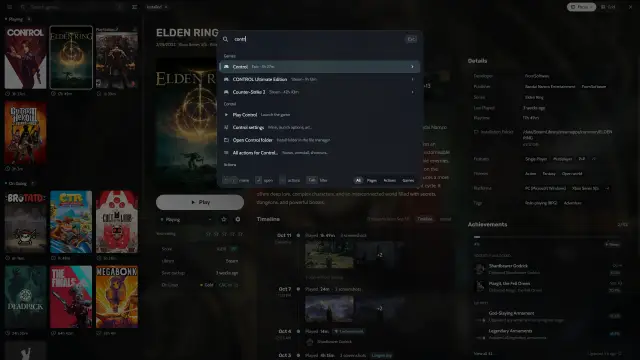
- You want a play history. Heronite records every session for statistics, a yearly backlog goal, a journal and a year in review.
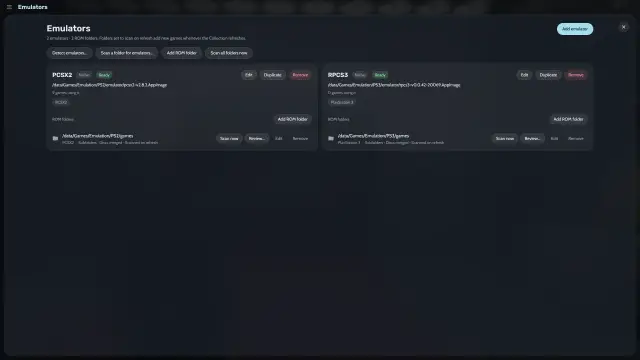
- You play emulated games. Heronite detects your emulators, such as RetroArch, Dolphin, PCSX2 and DuckStation, and scans your ROM folders.
- You want more sources on Linux. Heronite runs the Battle.net, EA, Ubisoft and Rockstar store apps, and imports games from Heroic, Lutris, Bottles and Faugus.

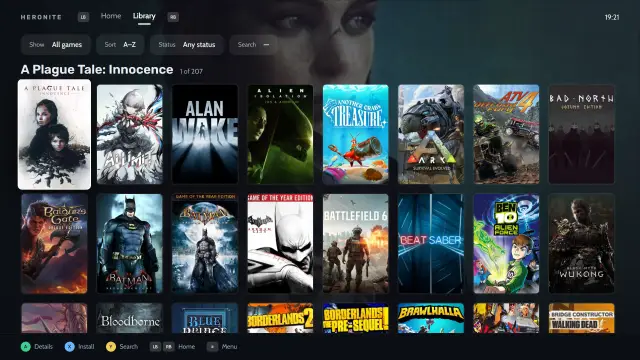
Console mode home: a featured game and a shelf to continue playing.
How do I switch from Playnite to Heronite?
On Windows, Heronite imports the games Playnite has installed. It only reads Playnite’s files, so Playnite keeps working.
- Log in to your stores. Open Stores (Ctrl 4) and log in to Epic Games, GOG and Amazon Games. Steam needs no login.
- Import Playnite’s games. Close Playnite, then in Settings → Other launchers turn on Bring its games in under Playnite. Its installed games appear with their covers and play time, and still launch through Playnite.
- Add any other games. Press Ctrl N to add a program, or choose Add from folder in the ☰ menu to add every game in a folder.
- Detect your emulators and scan your ROM folders. On the Emulators page (Ctrl 5), press Detect emulators, then Scan now.
Heronite leaves out Playnite’s Steam, Epic, GOG and Amazon games, because it imports those from the stores directly. Tags, completion status and notes stay in Playnite.
On Windows, Heronite adds games installed by the Epic Games Launcher, GOG Galaxy or the Amazon Games app, without downloading them again. For Epic games you never played in Heronite, it can take in the play time Epic recorded.
Next: Download Heronite for Linux or Windows, then read Getting started.