
Heronite vs Lutris: feature comparison
| Heronite | Lutris | |
|---|---|---|
| Platforms | Linux and Windows 10/11 | Linux |
| Built with | Rust, GPU-rendered, no bundled browser | Python |
| How games are set up | From the store, by hand, or a YAML install script | Install scripts, or manual setup |
| Steam library | Yes, no login needed | Yes |
| Epic, GOG, Amazon | Yes, with legendary, gogdl and nile | Yes |
| Battle.net, EA app | Yes, through Wine on Linux | Yes |
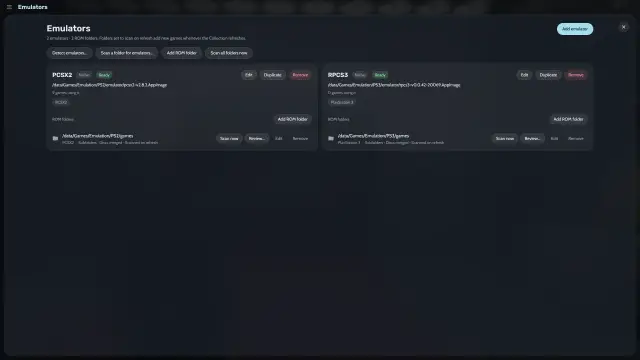
| Emulation | Detected emulators, ROM scan, save states | Runners for many emulators and engines |
| Wine and Proton | Yes, with a Wine Manager | Yes, GE-Proton through umu by default |
| Play time | Statistics, journal, year in review | Yes, with a play time editor |
| Cloud saves | Epic and GOG, in beta | — |
| Online account | Not needed | Optional lutris.net account |
| Import from the other launcher | Yes, on Linux | Not applicable |
The Lutris column comes from lutris.net, the Lutris repository and its release notes, current as of November 2026. — = not in Lutris’s README, site or release notes.
What do Heronite and Lutris share?
Both are free, open source (GPL-3.0) launchers. Both run Windows games through Wine or Proton, connect to several stores, track play time and run emulators.
Which one should you choose?
Choose Lutris if…
- You rely on community install scripts. Lutris installers are YAML scripts on lutris.net, and a
lutris:link runs one from the command line. - You want a runner for an older system or an engine. Lutris’s site names Wine, MAME, Dolphin, RetroArch and ScummVM, “and many more”.
- You like one front end for many runners. Each runner has its own settings.
- You want to sync your library with an account. Lutris offers an optional lutris.net account.
Choose Heronite if…
- You mostly play from stores. Log in to Epic Games, GOG and Amazon Games once, and every game you own there appears, installed or not (stores).
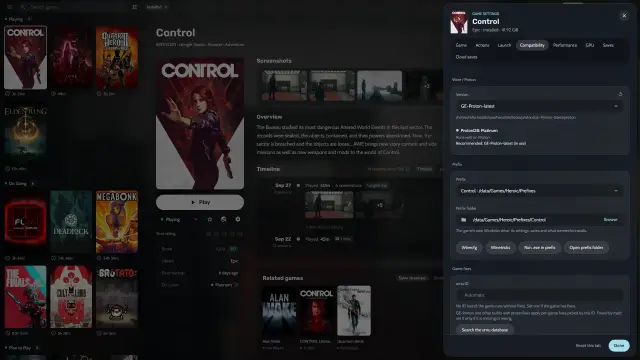
- You want Wine or Proton set per game. Choose a version, a Wine prefix (a separate Windows folder for that game) and options like DXVK or gamescope (Wine and Proton).
- You want a native Rust app. No bundled browser, and about 190 MB of memory when idle (performance).
- You want a play history. Heronite records every session for statistics, a journal and a year in review.
- You play on a TV or with a controller. Console mode has eight layouts and seven themes you can edit and share.
- You want the same launcher on Windows. Settings → Cloud keeps one library on both systems of a dual boot (saves and backups).
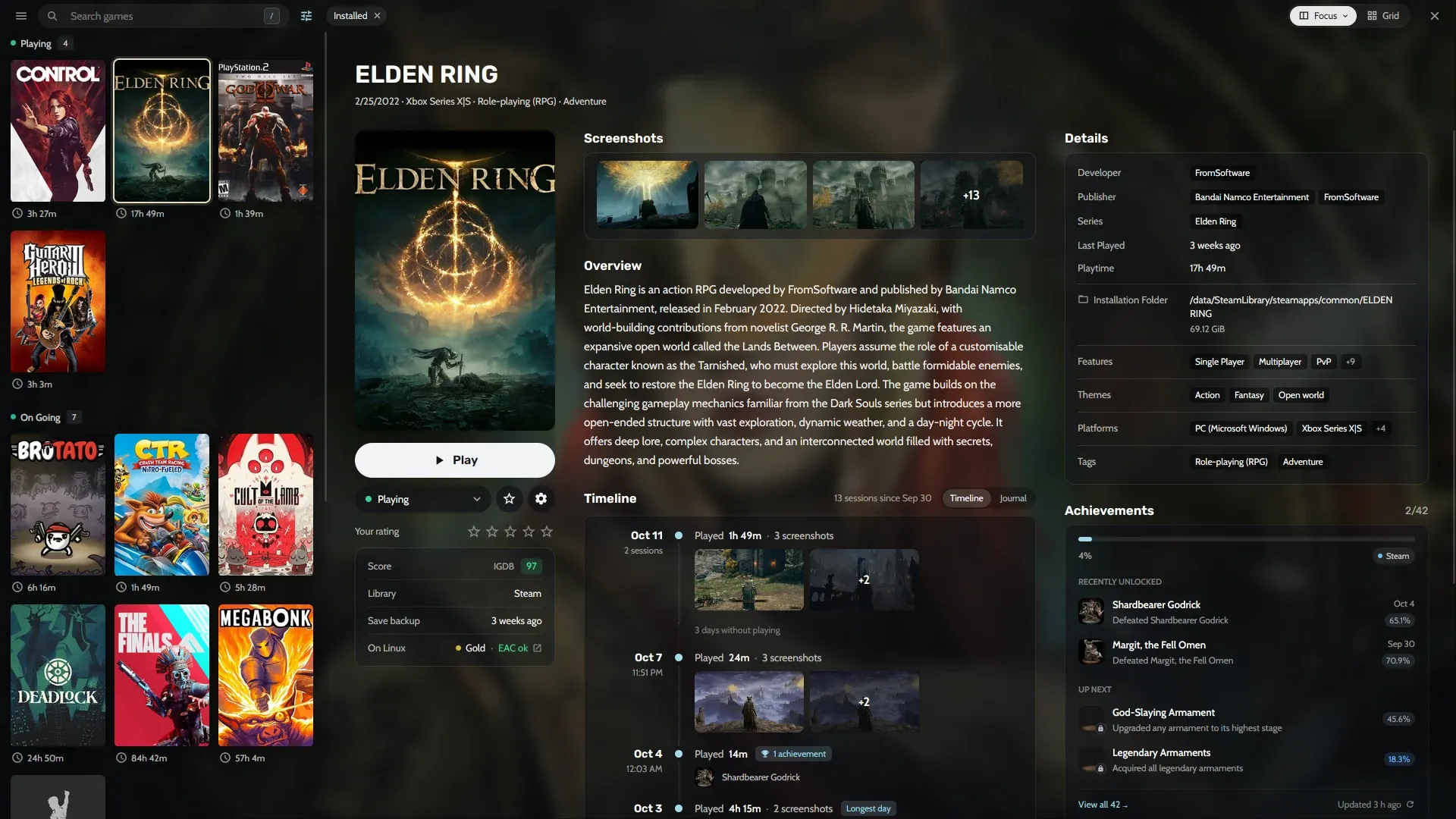
The Collection: grouped games, play time and a session timeline.
How do I switch from Lutris to Heronite?
On Linux, Heronite imports the games in Lutris’s library. It only reads Lutris’s files, so Lutris keeps working as before.
- Install Heronite and start it.
- Turn on the Lutris import. In Settings → Other launchers, turn on Bring its games in under Lutris. Its installed games appear with their covers and play time, and stay in sync with Lutris’s normal install or its Flatpak.
- Log in to your stores. Open Stores (Ctrl 4) and log in to Epic Games, GOG and Amazon Games.
Good to know:
- Lutris still launches the games Heronite imported, with the settings you gave them there.
- Heronite skips the Steam games Lutris lists and uses its own Steam import, so nothing shows twice.
- Heronite imports the games, not the install scripts that set them up.
- The Wine Manager finds the Wine runners Lutris already installed.
Next: Download Heronite, then read Getting started.