
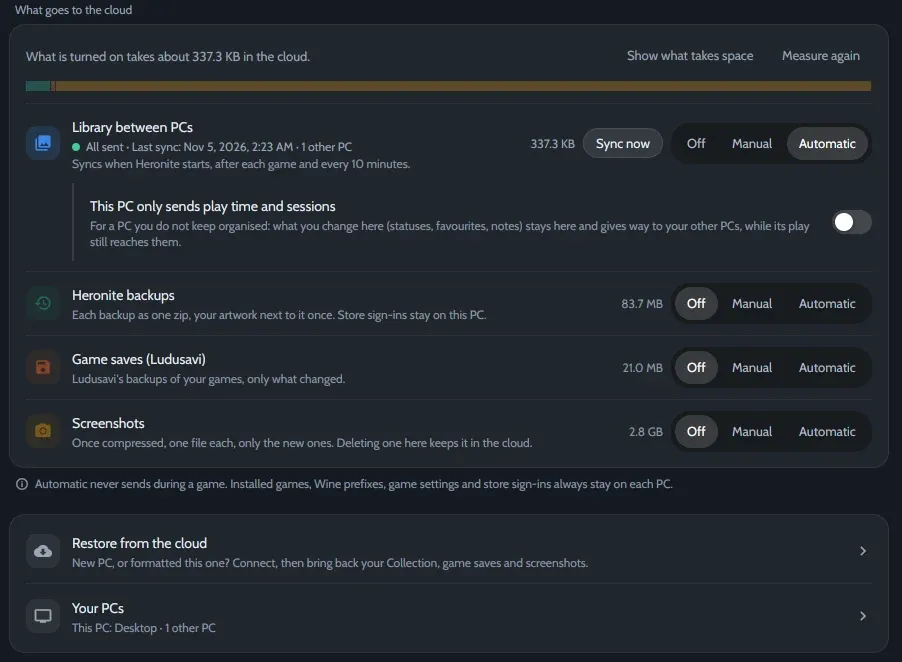
Settings → Cloud, synced with one other PC.
What syncs
| Syncs | Stays on each PC |
|---|---|
| Statuses, favourites and ratings | Installed games |
| Notes and hidden games | Wine prefixes |
| Play time and sessions | Game settings and store sign-ins |
Your data goes only to the folder or account you choose.
Choose where your PCs meet
| Service | Best for |
|---|---|
| A shared folder | A dual boot, or a folder that Syncthing, Dropbox or OneDrive already keep in sync |
| Google Drive, Dropbox, OneDrive or Box | PCs in different places. You sign in once, in the browser |
| FTP, SMB or WebDAV | A NAS or a home server |
| An rclone remote | Any other service you set up with rclone config |
Accounts and servers go through rclone. Heronite downloads it if it is not installed.
Set it up
- Open Settings → Cloud.
- Under Service, choose where your PCs meet. For an account or a server, press Connect. For a shared folder, choose the Sync folder.
- Under Choose what goes, and when, set Library between PCs to Automatic.
- Do the same on your other PCs, with the same account or folder.
Automatic syncs when Heronite starts, after each game and every 10 minutes. Manual waits for Sync now.
On a Linux and Windows dual boot
- Pick a drive both systems mount at startup, formatted NTFS or exFAT, and choose a folder on it as the Sync folder in both systems.
- In Windows, turn off Fast Startup. Otherwise Linux mounts the drive read-only.
- Under Your PCs, give each side a name, like Linux and Windows.
When two PCs disagree
Each PC writes only its own file, so a sync service never has two copies to choose between. Heronite merges them:
- Statuses, favourites, ratings and notes: the newest change wins, field by field.
- Sessions: every PC’s sessions are kept, with no duplicates.
- Play time: the largest total wins, unless you lowered it by hand.
- A game only one PC has: its data waits, and comes in once you add that game on the other PC.
More options
- This PC only sends play time and sessions: for a PC you don’t keep organised. Its play time and sessions count everywhere; statuses, favourites, ratings, hidden games and notes come from the other PCs.
- Backups, game saves and screenshots can go to the same account. See Backups and saves.
- New PC: sync fills in games a PC already has. To bring the whole library from a backup another PC sent, see Set up a new PC from the cloud.